
Track Every Card in Hearthstone
The go-to deck tracker and manager for Hearthstone on Windows. Get real-time overlays, opponent predictions, win-rate stats, and automatic deck detection — all in one app.
What Is Hearthstone Deck Tracker?
A free, open-source overlay that tracks cards, predicts opponent plays, and logs match stats while you play Hearthstone.
The Short Version
Hearthstone Deck Tracker (HDT) is a Windows app that sits on top of Hearthstone and shows you which cards are left in your deck, what your opponent has played, and how likely you are to draw specific cards next turn. It runs in the background, reads game memory, and updates the overlay in real time. No manual input required.
The project is built by HearthSim, the same group behind HSReplay.net. It has been around for years and has picked up over 4,900 stars on GitHub. The current release is v1.59.7, weighing in at 18.2 MB. Windows only — Vista through Windows 11.
Who Actually Uses This
Mostly competitive and semi-competitive players who want an edge in ranked play. Hearthstone Deck Tracker removes the mental load of counting cards by hand. Instead of remembering that you have one Fireball left, you glance at the overlay. Streamers use it too, since it supports Twitch extensions and OBS overlays that let viewers see the deck list in real time.
Casual players benefit as well. The mulligan guide helps newer players figure out which starting cards to keep, and the post-game stats break down win rates per deck and per class matchup. If you have ever wondered why your homebrew deck keeps losing to Paladins, the stats panel will tell you exactly how bad the matchup is.
How It Fits Into the Hearthstone Ecosystem
Hearthstone Deck Tracker connects directly to HSReplay.net for deck syncing and aggregated statistics. You can import deck codes, export your collection, and compare your performance against global averages. A plugin system lets the community add extra features, from arena drafting helpers to custom themes. Battlegrounds mode is also supported, with separate stat tracking for that game mode.
Blizzard has never taken action against deck trackers, and the general consensus on r/hearthstone is that HDT is safe to use. It reads game data passively and does not modify anything. Alternatives like Firestone and Track-o-Bot exist, but HDT remains the most feature-complete option available for Windows players.
Ready to try it? Download Hearthstone Deck Tracker or jump to the getting started guide.
Key Features
Hearthstone Deck Tracker runs as a lightweight overlay on top of Hearthstone, giving you card tracking, match stats, and opponent reads without leaving the game.
Real-Time In-Game Overlay
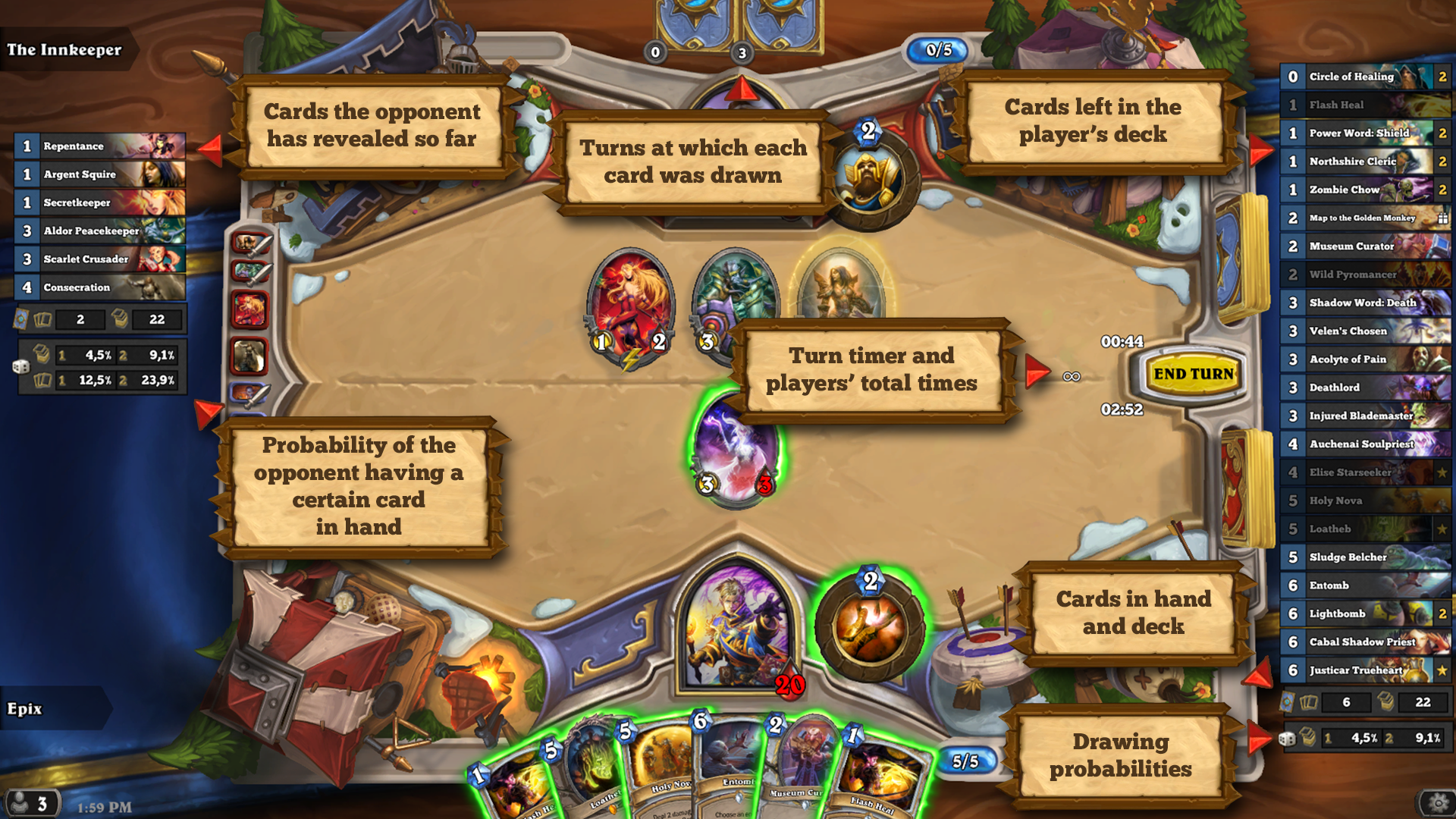
HDT draws directly on top of the Hearthstone client, showing your remaining deck list and cards your opponent has played. The overlay updates after every draw, play, and discover effect. You can reposition it, adjust opacity, or collapse it mid-game so it never blocks your board.
Opponent Hand Tracking
See how many cards your opponent holds and how long each card has been there. HDT marks cards created by specific effects, so you know which ones came from card generation vs. their original deck.
Draw Probabilities
The tracker calculates your exact chance of drawing each remaining card on the next turn. Useful for deciding whether to go all-in or play safe based on what is left in your deck.
Match Statistics
HDT logs every game automatically. Review per-deck win rates, class matchups, and performance over time. Filter by game mode (Standard, Wild, Arena, Battlegrounds) to spot your strongest and weakest matchups.
Automatic Deck Detection
When a match starts, HDT identifies which deck you are playing and selects it automatically. No manual switching needed. It pulls decks from your Hearthstone collection and syncs with HSReplay.net.
Mulligan Guide
Before your match begins, HDT shows mulligan win rates for each card in your opening hand, pulled from HSReplay.net data. The recommendations are based on thousands of games at your rank bracket, not just top-legend play.
Deck Import & Export
Copy a deck code from any website or clipboard, paste it into HDT, and it builds the deck list instantly. Export works the same way. HDT also imports directly from your Hearthstone collection.
Battlegrounds Mode Tracking
HDT works in Battlegrounds too. It tracks your hero picks, placement history, and minion stats across sessions. The overlay shows Bob’s Tavern tier info and helps you keep tabs on opponents’ boards between combat rounds. Battlegrounds stats feed into the same statistics dashboard as Constructed.
Streaming & Twitch Support
HDT has a Twitch extension that shows your deck list to viewers in real time. Streamers can also use the OBS/XSplit overlay for clean broadcast layouts with customizable positioning and themes.
Plugin System
Community developers have built plugins that extend HDT with extra features: turn timers, arena tier overlays, fatigue counters, and more. Install plugins directly from within the app without any file management.
Turn Timer & Card History
A built-in turn timer helps you keep track of how long you and your opponent take each turn. The card history panel records every card played in order, letting you scroll back through the match at any point.
Hearthstone Deck Tracker is free, open-source, and maintained by HearthSim. Download it here and start tracking your first match in under two minutes.
System Requirements
Hearthstone Deck Tracker runs alongside Hearthstone with minimal resource usage. Check whether your PC meets the specs below.
| Component | Minimum | Recommended |
|---|---|---|
| Operating System | Windows Vista or later | Windows 10/11 (64-bit) |
| Processor (CPU) | Any x86/x64 processor | 2 GHz dual-core or better |
| RAM | 2 GB | 4 GB |
| Disk Space | 200 MB free | 500 MB free |
| GPU | Any DirectX 9 capable | DirectX 11 capable |
| Framework | .NET Framework 4.5+ | .NET Framework 4.8 |
| Internet | Required for updates and HSReplay sync | Broadband connection |
Hearthstone Deck Tracker is built with C# on the .NET Framework and runs as an overlay on top of the Hearthstone client. Most Windows PCs from the last decade already meet these specs. Windows 10 and 11 include .NET Framework 4.5+ by default, so no extra runtime downloads are needed. If you are running an older version of Windows, grab the latest .NET Framework from Microsoft before installing HDT.
Download Hearthstone Deck Tracker
Get the latest version of HDT and start tracking your Hearthstone matches, decks, and win rates right away.
Hearthstone Deck Tracker for Windows
v1.59.7 18.2 MB October 24, 2026
Download Hearthstone Deck TrackerWindows EXE Installer — 18.2 MBCompatible with Windows Vista, 7, 8, 10, and 11
GitHub Releases
Browse all versions, changelogs, and delta update packages on GitHub.
View All ReleasesSource Code
HDT is open-source. Review, fork, or compile the tracker from its C# source.
View SourceHSReplay.net
The official companion site for syncing replays, stats, and deck data online.
Visit HSReplay
Hearthstone Deck Tracker requires .NET Framework 4.5 or later. The installer handles all dependencies automatically.
For system requirements, check the requirements section above.
Screenshots
See Hearthstone Deck Tracker in action – from the in-game overlay to deck management and match statistics.

Screenshots from the official Hearthstone Deck Tracker GitHub repository
Getting Started with Hearthstone Deck Tracker
From download to your first tracked game in under five minutes. Here is everything you need to set up HDT and start playing smarter.
Downloading Hearthstone Deck Tracker
Head to our download section above to grab the latest HDT installer. The file you want is HDT-Installer.exe, which weighs in at about 18.2 MB. On most connections, that takes under a minute.
HDT only ships one version for Windows, so there is no 32-bit vs. 64-bit decision to make. The installer bundles everything you need. There is no portable or .msi option from the official source — just the single .exe installer from the HearthSim team on GitHub.
If you prefer command-line installs, HDT is also available through Windows Package Manager. Open a terminal and run:
That handles the download and install in one step. Either method gives you the same result.
Always download HDT from the official source (HSReplay.net or GitHub). Third-party download sites sometimes bundle outdated versions or extra software you do not want.
Installation Walkthrough
Double-click HDT-Installer.exe to start the setup. The installer is straightforward with only a few screens. Here is what to expect at each step:
Windows SmartScreen Warning
Since HDT is an open-source app without an expensive code-signing certificate, Windows may show a SmartScreen popup. Click “More info” and then “Run anyway”. This is normal for community-developed software and happens with plenty of trusted tools.
Accept the License Agreement
The installer shows HearthSim’s open-source license. Read through it if you like, then click “I Agree” to continue. HDT is free and always will be.
Choose Install Location
The default path is C:Program FilesHearthstone Deck Tracker. Unless you have a specific reason to change it, leave the default. Click “Install” to begin copying files.
Finish and Launch
Installation takes just a few seconds. Leave the “Run Hearthstone Deck Tracker” checkbox ticked and click “Finish”. HDT will open immediately.
HDT requires .NET Framework 4.5 or higher. Windows 10 and 11 include this by default, so most users will not need to install anything extra. Running Windows 7 or 8? Download .NET Framework from Microsoft first.
HDT is Windows-only. There is no official macOS or Linux build. Linux users have had some luck running it through Wine/Lutris, but the overlay does not work reliably outside Windows. For macOS and mobile, the HearthSim team recommends Arcane Tracker on Android and HSReplay.net for web-based stats.
Initial Setup & Configuration
When HDT launches for the first time, it will try to auto-detect your Hearthstone installation folder. If Hearthstone is installed through Battle.net in the default location (C:Program Files (x86)Hearthstone), HDT finds it automatically. If not, you will get a prompt to browse to your Hearthstone folder manually.
Link Your HSReplay.net Account
HDT will ask if you want to connect to HSReplay.net. Do it. This uploads your game replays automatically and unlocks mulligan guides, personal stats dashboards, and matchup data across all your decks. Click “Claim Account” and follow the browser prompt to log in.
Configure the Overlay
Go to Options > Tracker > Overlay. Here you can adjust where the deck list and opponent tracker appear on screen. Drag the overlay panels in the preview window to position them. Most players keep the deck tracker on the left side and the opponent tracker on the right. Adjust opacity if the overlay feels too intrusive during gameplay.
Set Up Auto-Deck Detection
Under Options > Tracker > General, make sure “Auto select detected deck” is checked. This tells HDT to automatically recognize which deck you are playing when a game starts, so you do not have to select it manually every time.
Game Mode Tracking
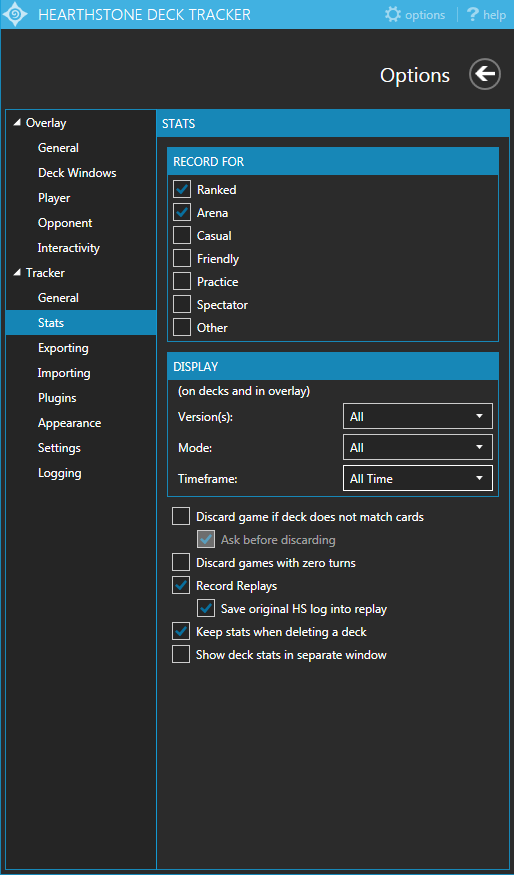
In Options > Tracker > General, choose which game modes to track: Ranked, Casual, Arena, Battlegrounds, Tavern Brawl, or all of them. If you mostly play Ranked, you might want to disable Casual tracking to keep your stats clean.
If you used Firestone or Track-o-Bot before, HDT does not import stats from other trackers. Your historical data lives on those platforms. HDT starts fresh, but HSReplay.net builds your stats quickly once you start playing.
Your First Tracked Game
With HDT configured, here is how to get into a game and see the tracker in action. The whole process takes about two minutes.
Import a Deck
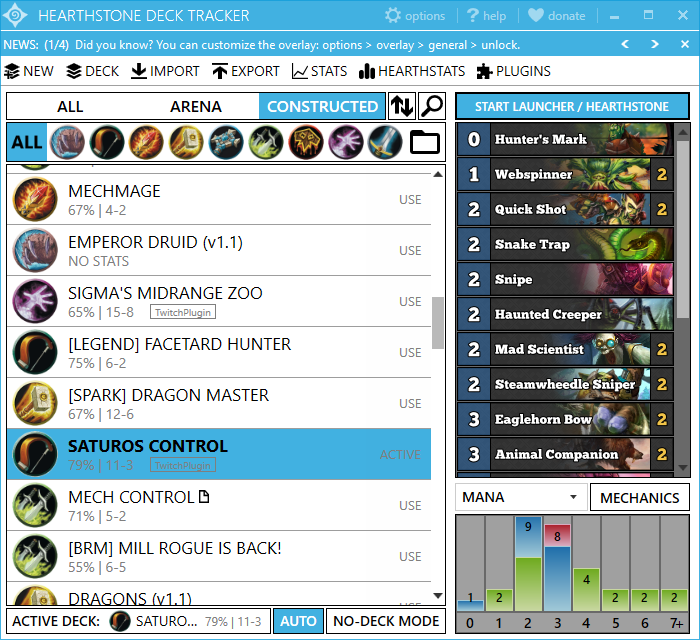
Click “New Deck” in the HDT main window, then choose “Import from Web”. Paste a deck code or a URL from HSReplay.net, HearthPwn, or any supported site. HDT will load the full card list instantly. You can also click “Import from Game” after launching Hearthstone to pull in decks already in your collection.
Launch Hearthstone
Open Hearthstone through Battle.net as you normally would. HDT detects the game client automatically. You should see a small notification in HDT confirming the connection. Keep HDT running in the background while you play.
Queue Into a Match
Pick your deck and start a game. As soon as the match begins, HDT’s overlay appears on screen. On the left you will see your remaining deck cards with draw probabilities. On the right, the opponent tracker shows cards they have played and their hand size. Cards turn gray in your deck list as you draw them.
Use the Mulligan Guide
During the mulligan phase, HDT shows win-rate data for each card in your opening hand based on thousands of games from HSReplay.net. Cards with higher keep rates are highlighted. This data updates regularly and reflects the current meta, so it stays relevant even after balance patches.
Review Your Results
After the game ends, HDT logs the result automatically. Click the “Stats” tab in the main window to see your win rate by class, deck performance over time, and individual game replays. Every match is also uploaded to HSReplay.net where you can share replays and dig into detailed turn-by-turn analysis.
The key tabs you will use most in HDT’s main window: Deck (manage and switch decks), Stats (win rates and match history), Import/Export (deck codes and sharing), and Plugins (extend functionality). The bottom bar always shows your currently active deck and its record.
Tips, Tricks & Best Practices
Once you have the basics down, a few tweaks will make HDT work even harder for you.
Enable the Bob’s Buddy plugin for Battlegrounds. This is the single most popular HDT plugin. It simulates combat outcomes during the Battlegrounds shopping phase and shows your probability of winning, losing, or tying each round. Install it from Options > Tracker > Plugins or download the .dll from GitHub, drop it in %appdata%HearthstoneDeckTrackerPlugins, restart HDT, and enable it in the Plugins tab.
Streamers: set up the capturable overlay. If you stream on Twitch or record with OBS, go to Options > Advanced Options > Capturable Overlay. This puts the tracker in a separate window that OBS can capture cleanly. HDT also has an official Twitch extension that shows your deck list and stats to viewers directly in the stream.
Keep HDT up to date. HDT checks for updates on startup. When a new Hearthstone expansion drops, HearthSim pushes an update within hours to support new cards. Do not skip these updates or the tracker will misread card data.
| Feature | Where to Find It | What It Does |
|---|---|---|
| Draw Probabilities | Overlay (hover a card) | Shows chance of drawing a specific card next turn |
| Turn Timer | Options > Overlay | Displays remaining turn time and total match duration |
| Card History | Overlay sidebar | Lists every card played each turn for you and your opponent |
| Deck Export | Main window > Export | Copies deck code to clipboard for sharing |
| Mulligan Stats | Overlay (mulligan phase) | Shows keep/toss win rates based on HSReplay data |
| Collection Upload | Options > HSReplay | Syncs your full card collection to HSReplay.net |
Common beginner mistake: running Hearthstone in true fullscreen mode. HDT’s overlay works best in Windowed or Borderless Windowed mode. Switch this in Hearthstone’s graphics settings. True fullscreen can cause the overlay to flicker or disappear entirely.
For help beyond this guide, the HearthSim Discord server is the fastest place to get answers. The official FAQ on GitHub covers most common issues, and r/hearthstone on Reddit has an active community of HDT users who can troubleshoot specific problems.
Ready to start tracking your Hearthstone matches?
Download Hearthstone Deck TrackerFrequently Asked Questions
Answers to the most common questions about Hearthstone Deck Tracker, from installation and safety to overlay setup and plugin configuration.
Is Hearthstone Deck Tracker safe to download and use?
Yes, Hearthstone Deck Tracker (HDT) is safe. The entire codebase is open-source on GitHub under the HearthSim organization, meaning anyone can inspect the code for malicious behavior. The project has earned over 4,900 stars on GitHub and has been reviewed by thousands of developers since its initial release.
The HDT installer (HDT-Installer.exe, 18.2 MB) is distributed through GitHub Releases, which is a trusted platform with no third-party ad wrappers or bundled software. Windows Defender and most antivirus programs flag zero issues with the official installer. If you see a SmartScreen warning on first launch, that is because HDT is a smaller independent application without an expensive code-signing certificate – it is not a security threat.
- Download only from the official source: our download section or GitHub Releases
- Avoid third-party sites like Softonic, CNET, or FileHippo that may bundle adware with the installer
- If your antivirus quarantines HDT, add an exception for the installation folder (typically
%LocalAppData%HearthstoneDeckTracker) - HDT only reads Hearthstone log files – it does not modify game memory or inject code
Pro tip: After downloading, right-click the installer, go to Properties, and check “Unblock” if present. This prevents Windows from treating the file as untrusted.
For system compatibility details, check our system requirements section.
Can you get banned for using Hearthstone Deck Tracker?
No. Blizzard has never banned a player for using HDT. Deck trackers that only read log files and display information you could track with pen and paper are considered acceptable by Blizzard. A Blizzard developer confirmed this position on the official forums years ago, and the stance has not changed.
HDT reads from Hearthstone’s output_log.txt file – it does not hook into the game process, modify memory, or send automated inputs. Blizzard’s official Tournament Player Handbook (v2.6, section 5.10) explicitly permits deck tracking software in sanctioned tournaments, provided the tracker complies with the handbook rules. Professional players and streamers like Kripparian, Firebat, and RegisKillbin use HDT on stream without issue.
- HDT only tracks cards already played or drawn – information visible in the game history sidebar
- The draw probability feature calculates odds from your remaining deck, which any player could do with a calculator
- Blizzard built a native deck tracker into the mobile version of Hearthstone in 2024, signaling full acceptance of the concept
Pro tip: If you participate in a specific tournament, check its rules page. Some community-run tournaments have their own restrictions on overlay features like Bob’s Buddy predictions in Battlegrounds.
Read more about HDT’s tracking capabilities in our features section.
Where is the official safe download for Hearthstone Deck Tracker?
The official download for Hearthstone Deck Tracker is hosted on GitHub Releases under the HearthSim organization. The current version (v1.59.7, released October 24, 2026) is a 18.2 MB installer file named HDT-Installer.exe.
HearthSim also maintains a download page at hsreplay.net/downloads, which links to the same GitHub-hosted file. The old domain hsdecktracker.net redirects there as well. Both URLs point to the identical installer binary, so either source is equally safe. Our download section links directly to the official GitHub release.
- Official GitHub repository: github.com/HearthSim/Hearthstone-Deck-Tracker
- Direct installer download: github.com/HearthSim/HDT-Releases (the release artifacts repo)
- HSReplay download page: hsreplay.net/downloads
Avoid sites that wrap the download in their own installer or require you to sign up before downloading. The real HDT installer never asks for personal information during installation.
Pro tip: Bookmark the GitHub releases page directly. When a new version drops, it appears there first before hsreplay.net updates its link.
Head to our download section for a direct link to the latest version.
Does Hearthstone Deck Tracker work on Windows 11?
Yes, Hearthstone Deck Tracker works on Windows 11 without issues. HDT supports every version of Windows from Vista through Windows 11, including the latest 24H2 update. The application is built on .NET Framework 4.5+, which ships with all modern Windows versions.
Some users on Reddit reported overlay visibility problems when running Hearthstone in exclusive fullscreen mode on Windows 11. The fix is straightforward: switch Hearthstone to windowed or borderless windowed mode in the game settings (Options > Graphics > Display Mode). HDT’s overlay renders as a transparent window on top of Hearthstone, which works correctly in borderless windowed but can be blocked by exclusive fullscreen.
- Windows 11 (all builds including 24H2): fully supported
- Windows 10 (64-bit): the most tested platform, zero known issues
- Windows 8.1 and earlier: works but no longer actively tested by the developers
- .NET Framework 4.5 required – pre-installed on Windows 10 and 11
Pro tip: If you run HDT as Administrator on Windows 11, the overlay bypasses most rendering conflicts with other overlay software like Discord or GeForce Experience.
Check the full system requirements to make sure your setup meets all prerequisites.
Is Hearthstone Deck Tracker available for macOS or Linux?
Hearthstone Deck Tracker (HDT) is Windows-only software. There is no official macOS or Linux release from HearthSim. HDT is written in C# using .NET Framework and WPF (Windows Presentation Foundation), which ties it to the Windows platform.
For macOS players, there is a separate project called HSTracker (github.com/bmichotte/HSTracker) that provides similar deck tracking functionality. HSTracker is also open-source and reads the same Hearthstone log files. It supports macOS 12 Monterey and later, including Apple Silicon (M1/M2/M3/M4) Macs natively.
- macOS alternative: HSTracker – native Swift app with overlay support, available on GitHub
- Linux workaround: Some users have run HDT through Wine/Lutris, but the overlay does not function reliably. The main tracker window works for stat logging.
- Cross-platform alternative: Firestone runs through Overwolf, which is also Windows-only. Track-o-Bot has web-based stats that work from any browser.
Pro tip: If you play Hearthstone on Mac and want deck tracking stats without a native overlay, create an HSReplay.net account. It logs your game replays and provides web-based stats accessible from any browser or device.
Windows users can grab the installer from our download section.
What are the minimum system requirements for Hearthstone Deck Tracker?
Hearthstone Deck Tracker needs very little from your system. The minimum requirements are Windows Vista or newer, .NET Framework 4.5+, 2 GB of RAM, and about 200 MB of free disk space. If your PC can run Hearthstone, it can run HDT.
For the best experience, HearthSim recommends Windows 10 or 11 (64-bit) with at least 4 GB of RAM and a dual-core 2 GHz processor. The application itself uses around 80-150 MB of RAM during a game, depending on how many plugins you have loaded. CPU usage typically sits below 2% on any modern processor. The recommended 500 MB of disk space accounts for stored game replays and deck data that accumulate over time.
- OS: Windows Vista+ (minimum) / Windows 10 or 11 64-bit (recommended)
- RAM: 2 GB minimum / 4 GB recommended
- CPU: Any modern processor / 2 GHz dual-core recommended
- Disk: 200 MB free / 500 MB recommended for replay storage
- Framework: .NET Framework 4.5+ (comes with Windows 10/11)
- Internet: Required for HSReplay sync and auto-updates
Pro tip: If you are on an older system with limited RAM, disable plugins you do not use (Options > Plugins) and turn off “Upload replays to HSReplay” to reduce memory consumption by roughly 20-30 MB.
See the full breakdown in our system requirements table.
Is Hearthstone Deck Tracker completely free to use?
Yes, Hearthstone Deck Tracker is 100% free. The core application, the in-game overlay, deck management, game statistics, auto-deck detection, draw probabilities, and all plugin support cost nothing. HDT is open-source software maintained by the HearthSim community.
The separate service HSReplay.net offers a premium subscription (HSReplay Premium, roughly $5/month or $48/year) that unlocks additional web-based features like advanced mulligan guides with per-matchup data, detailed meta tier lists, personal post-game analysis, and extended replay storage. These premium features appear on the HSReplay website – they are not part of the desktop HDT application itself. The free HSReplay tier still gives you basic replay uploads and win-rate tracking.
- Free forever: Deck overlay, opponent tracking, deck management, local game stats, plugin support
- Free HSReplay tier: Basic replay uploads, limited mulligan data, general meta stats
- HSReplay Premium ($5/mo): Full mulligan guide per rank bracket, matchup-specific win rates, unlimited replay access, advanced personal stats
Pro tip: The free version of HDT covers everything most players need for ranked ladder. HSReplay Premium is most useful for competitive players who want detailed mulligan data broken down by opponent class and rank bracket.
Grab the free download from our download section to get started.
What does HSReplay Premium add to Hearthstone Deck Tracker?
HSReplay Premium is a web subscription that adds advanced analytics on top of the free HDT desktop app. It does not change HDT itself – Premium features live on the hsreplay.net website and in the overlay’s mulligan guide module.
The biggest difference is the mulligan overlay. Free users see general mulligan win rates across all ranks and matchups. Premium users see mulligan data filtered by their exact rank bracket (e.g., Diamond 5 through Diamond 1) and by the opponent’s class, which makes the advice significantly more accurate. HSReplay collects data from millions of games per month, so the sample sizes are large enough for this granularity to be meaningful.
- Advanced mulligan guide: Per-rank, per-matchup mulligan keep/toss rates with sample sizes displayed
- Personal statistics: Detailed personal win-rate breakdowns by class, archetype, time of day, and game length
- Meta tier lists: Real-time archetype power rankings based on live game data, not just theorycrafting
- Extended replay access: Longer replay history and search/filter tools on hsreplay.net
- My Decks sync: Automatically syncs your collection to show craftable decks with dust costs
Pro tip: HSReplay often runs promotions around expansion launches. If you want to try Premium, wait for a new expansion release when they sometimes offer discounted annual plans or extended free trials.
Learn about the free features included with HDT in our features overview.
How do I download and install Hearthstone Deck Tracker?
Installing Hearthstone Deck Tracker takes about two minutes. Download the official HDT-Installer.exe (18.2 MB) from our download section or from GitHub, run it, and follow the setup wizard.
The installer creates a folder at %LocalAppData%HearthstoneDeckTracker and places a shortcut on your desktop. It does not require Administrator privileges for installation. After the first launch, HDT auto-detects your Hearthstone installation path by scanning common locations and the Battle.net configuration.
- Visit our download section and click “Download Hearthstone Deck Tracker”
- Run
HDT-Installer.exe– if SmartScreen appears, click “More info” then “Run anyway” - Follow the installer steps (default settings work for most users)
- Launch HDT – it will prompt you to locate Hearthstone if not auto-detected
- Start a Hearthstone game – the overlay should appear automatically showing your deck list
If HDT cannot find Hearthstone automatically, go to Options > Tracker > Settings > Set Hearthstone Path and navigate to your Hearthstone installation folder (usually C:Program Files (x86)Hearthstone or wherever Battle.net installed it).
Pro tip: Pin HDT to your taskbar and set it to launch on Windows startup (Options > Tracker > General > Start with Windows) so it is always ready when you open Hearthstone.
For a more detailed walkthrough, see our Getting Started guide.
How to set up the Hearthstone Deck Tracker overlay?
The overlay activates automatically after installation. When you start a Hearthstone match with HDT running, your deck list appears on the left side of the screen and the opponent tracker appears on the right. If you do not see the overlay, the most common cause is running Hearthstone in exclusive fullscreen mode.
HDT’s overlay is a transparent window that sits on top of the Hearthstone window. It works in windowed mode, borderless windowed, and borderless fullscreen. Exclusive fullscreen blocks all overlay applications, not just HDT. The overlay position, opacity, and scale are all adjustable through HDT’s settings.
- Set Hearthstone to Borderless Windowed: in-game Options > Graphics > Display Mode > Windowed (Borderless)
- In HDT, go to Options > Overlay > General – make sure “Show overlay” is checked
- Adjust overlay position by unlocking it: Options > Overlay > General > “Unlock overlay” – drag elements to your preferred positions, then lock again
- Set opacity: Options > Overlay > Player/Opponent > Opacity slider (80-90% works well)
- Enable or disable specific elements: card counts, draw probabilities, turn timer, secrets tracker
Pro tip: If your overlay appears but you cannot click through it to interact with Hearthstone, enable “Click-through” mode in Options > Overlay > General. This makes the overlay fully transparent to mouse clicks.
For the complete first-time setup process, check our Getting Started guide.
How to fix Hearthstone Deck Tracker not working or not tracking cards?
When HDT stops tracking cards, the problem is almost always a broken log file connection between Hearthstone and HDT. This typically happens after a Hearthstone patch, a Battle.net update, or if another application modified the Hearthstone log configuration.
Hearthstone writes game events to a log file, and HDT reads that file in real time. If the log file path changes or the log configuration gets reset, HDT has nothing to read. The fix is to re-establish that connection. In most cases, restarting both applications resolves it. This has been one of the most-reported issues on the Hearthstone subreddit and GitHub issues page for years.
- Close Hearthstone and close HDT completely (check the system tray for HDT’s icon)
- Relaunch HDT first, then launch Hearthstone through Battle.net
- If still broken: in HDT, go to Options > Tracker > Settings > Set Hearthstone Path and re-select your Hearthstone folder
- If the path is correct but tracking still fails: delete the file
log.configin your Hearthstone installation folder, then restart HDT – it will recreate the file automatically - As a last resort, uninstall HDT, delete the folder
%AppData%HearthstoneDeckTracker, and reinstall from the download section
Pro tip: After every major Hearthstone patch, restart HDT before launching Hearthstone. HDT checks for a matching update on startup and patches itself, which prevents most post-update tracking failures.
More troubleshooting steps are covered in our Getting Started guide.
Why is Hearthstone Deck Tracker crashing or freezing on startup?
HDT startup crashes are usually caused by a corrupted config file, an outdated .NET Framework installation, or a conflict with the hardware acceleration renderer. The application logs the crash details to %AppData%HearthstoneDeckTrackerLogshdt_log.txt, which is useful for diagnosis.
Users on the HearthSim GitHub have reported that the most common crash trigger after a Windows update is a corrupted config.xml file. This file stores all HDT preferences, window positions, and overlay coordinates. When a value becomes invalid (like a negative window size from a display change), HDT crashes on launch before it can render its UI.
- Navigate to
%AppData%HearthstoneDeckTracker(press Win+R, paste the path, hit Enter) - Rename
config.xmltoconfig.xml.bak– this forces HDT to generate a fresh default config - Launch HDT again – it should start with default settings
- If it still crashes: try disabling hardware acceleration by adding
--disable-gputo your HDT shortcut target - If .NET errors appear in the log: download and install the latest .NET Framework 4.8.1 from Microsoft’s official site
Another known cause is an outdated or broken plugin. If HDT crashes immediately after you installed a plugin, remove the plugin’s DLL from the Plugins subfolder inside the HDT installation directory before launching again.
Pro tip: Keep a copy of your working config.xml somewhere safe. If HDT ever breaks, swapping in the backup gets you running in seconds without reconfiguring everything.
For installation help and initial setup, visit our Getting Started guide.
Does Hearthstone Deck Tracker affect game performance or cause FPS drops?
For most systems, HDT has no noticeable impact on Hearthstone performance. The application uses about 80-150 MB of RAM and stays under 2% CPU usage during gameplay. Players on machines with 8 GB+ RAM and a recent processor will not see any FPS difference.
That said, some users on the r/hearthstone and r/ArenaHS subreddits have reported stutter or micro-freezes when HDT is active, particularly on systems with 4 GB RAM or less, or when running multiple overlay applications simultaneously (Discord overlay, GeForce Experience, and HDT). The HDT overlay refreshes at a set interval, and if your system is already at its limits, those refresh cycles can cause brief hitches.
- Close other overlay apps (Discord overlay, GeForce Experience, Steam overlay) if you notice stuttering
- In HDT: Options > Tracker > uncheck “Detailed game logging” if you do not need full replay data
- Disable plugins you are not actively using – each plugin adds a small amount of overhead
- On low-RAM systems (4 GB or less), close background applications like Chrome before playing
Pro tip: If you are streaming with OBS and using HDT, use the Twitch Extension output instead of the window capture overlay. It offloads the deck display to Twitch’s CDN rather than adding another layer to your screen render pipeline.
Review the recommended specs in our system requirements section.
How to update Hearthstone Deck Tracker to the latest version?
HDT has a built-in auto-updater. When you launch the application, it checks for a new version and prompts you to install it. Click “Update” and HDT downloads and applies the patch automatically, then restarts. The whole process takes about 30 seconds on a normal internet connection.
The current latest version is v1.59.7 (released October 24, 2026). HDT typically releases updates within 24-48 hours after a Hearthstone content patch to account for new cards, changed mechanics, or log format updates. If HDT becomes “out of date” relative to a Hearthstone patch, the overlay may show incorrect card names or fail to detect new cards until the HDT update arrives.
- Launch HDT – if an update is available, a notification appears at the top of the main window
- Click “Update” to download and install automatically
- If auto-update fails: download the latest installer manually from our download section and run it over the existing installation
- After updating, restart Hearthstone as well to ensure log file compatibility
Pro tip: Follow @hsdecktracker on X (Twitter) for patch notes and update announcements. They typically post within hours of a Hearthstone patch going live, letting you know whether you need to wait for an HDT update before playing with the tracker.
Download the latest version from our download section.
Hearthstone Deck Tracker vs Firestone – which is better?
Both are good tools, but they cater to different preferences. HDT is a standalone lightweight application focused on constructed and Battlegrounds tracking with a plugin system. Firestone runs through the Overwolf platform and offers a more polished, all-in-one interface with extra modes like Duels and Mercenaries support.
HDT uses less system resources because it does not require the Overwolf framework running in the background. On a typical system, HDT uses 80-150 MB RAM versus Firestone’s 200-400 MB (including Overwolf overhead). For players on lower-end hardware, that difference matters. HDT also supports community plugins (like graveyard trackers and Battlegrounds simulations) that Firestone does not.
- HDT advantages: Lower resource usage, open-source code, community plugin ecosystem, HSReplay.net integration, faster startup
- Firestone advantages: Modern UI with dark theme, better Battlegrounds display, built-in Duels support, Tavern Brawl deck import, less manual configuration
- Stats handling: HDT syncs with HSReplay.net for web-based analytics. Firestone has its own built-in stats dashboard.
- Community preference: Reddit polls on r/hearthstone from 2024-2025 typically split about 60/40 in favor of HDT for constructed play and about 50/50 for Battlegrounds
The short answer: if you want lightweight and extensible, pick HDT. If you want a modern interface with minimal setup, try Firestone. Many players have used both and switched between them depending on which game mode they focus on.
Pro tip: You can run both HDT and Firestone simultaneously without conflicts, though it wastes resources. A better approach is to test each for a week and stick with whichever feels more comfortable.
Explore what HDT offers in our features section.
What plugins work with Hearthstone Deck Tracker and how do I install them?
HDT supports a plugin system that lets the community extend its functionality. Plugins are distributed as .dll files that you drop into HDT’s Plugins folder. Some of the most popular plugins include Battlegrounds Buddy, a graveyard tracker for cards like N’Zoth and Resurrect effects, and HSReplay integration extensions.
The plugin ecosystem is one of HDT’s biggest advantages over Firestone and Track-o-Bot. Because the source code is open, developers can build plugins that hook into HDT’s card tracking engine to add their own overlays, stats, and tools. The HearthSim wiki on GitHub maintains a list of known plugins with compatibility information for each HDT version.
- Find a plugin on the HearthSim GitHub wiki or community forums
- Download the plugin .dll file from the developer’s GitHub releases page
- Navigate to your HDT installation folder (usually
%LocalAppData%HearthstoneDeckTracker) - Place the .dll file in the
Pluginssubfolder - Restart HDT and go to Options > Plugins to enable and configure the new plugin
Not every plugin stays updated. Before installing a plugin, check its last commit date on GitHub. If it has not been updated in over six months, it may not work with the current HDT version and could cause crashes.
Pro tip: The HSGuru plugin (hsguru.com/hdt-plugin) adds draft assistance for Arena mode, showing card tier scores during the drafting phase. It is one of the most actively maintained third-party plugins.
See all built-in features before exploring plugins in our features section.
How do I import decks into Hearthstone Deck Tracker?
HDT supports several ways to import decks. The fastest method is pasting a deck code directly from Hearthstone or from any deck-sharing website. HDT also auto-detects the deck you are playing when a match starts, so manual importing is often unnecessary for your active decks.
When you copy a deck code in Hearthstone (Collection > right-click deck > Copy), HDT detects the clipboard content and offers to import it. You can also import from popular sites like HSReplay.net, Hearthpwn, and Out of Cards. HDT reads the deck code format that Blizzard standardized, which means any site that exports Hearthstone deck codes works with HDT.
- From clipboard: Copy a deck code, open HDT, click Import > From Clipboard, click Import
- From Hearthstone: HDT auto-detects your active deck when a game begins – no action needed
- From URL: Click Import > From URL, paste a deck page link from HSReplay, HearthPwn, or similar sites
- From HSReplay account: Link your HSReplay account in HDT and sync your decks directly
HDT stores imported decks locally in its database. You can organize them into folders, tag them by archetype, and track per-deck win rates over time. The deck management interface shows your record and win rate for each saved deck.
Pro tip: Enable “Auto-select deck” in Options > Tracker > General. With this on, HDT identifies which of your saved decks you queued with and activates the right tracker automatically – no manual deck selection before each game.
Get started with deck management in our Getting Started guide.
Does Hearthstone Deck Tracker work with Battlegrounds mode?
Yes, HDT supports Hearthstone Battlegrounds. The Battlegrounds overlay shows available minions in the tavern tier, tracks your opponents’ last known boards, and displays combat simulation results through the Bob’s Buddy plugin.
Bob’s Buddy is the standout feature for Battlegrounds players. It runs a Monte Carlo simulation of the upcoming combat round and shows your win/loss/tie percentages before the fight begins. This calculation factors in all your minions’ stats, enchantments, deathrattles, and positions. The simulation runs locally on your machine and updates in real time as you make changes to your board during the recruit phase.
- Bob’s Buddy: Pre-combat win/loss/tie percentage simulation
- Opponent tracking: View each opponent’s last known board composition and hero power
- Tier tracking: Shows how many minions from each tavern tier are still in the pool
- Turn-by-turn history: Review what happened in previous combat rounds
Battlegrounds tracking works out of the box – no extra plugins or configuration. Just make sure “Enable Battlegrounds” is checked in Options > Overlay > Battlegrounds.
Pro tip: Bob’s Buddy can occasionally cause brief lag spikes on slower machines because it runs thousands of combat simulations per second. If you notice stuttering during the recruit phase, you can limit the simulation to fewer iterations in the plugin settings, or disable it and rely on the tier/opponent tracking instead.
See all supported game modes in our features section.
How to use Hearthstone Deck Tracker for streaming on Twitch?
HDT has built-in Twitch integration through its native Twitch Extension. The extension displays your deck list and game stats as an interactive overlay on your Twitch stream, letting viewers hover over card names to see the full card art and text. This is separate from the in-game overlay – viewers see a browser-based version on the Twitch player.
The advantage of the Twitch Extension over capturing the in-game overlay with OBS is performance and viewer interactivity. Window-capturing the overlay adds rendering load to your system. The Twitch Extension pushes deck data to Twitch’s servers, where it renders client-side for each viewer. Your PC does zero extra work, and viewers can interact with the card list.
- In HDT, go to Options > Streaming > Twitch Extension (enable “Advanced settings” first if you do not see the Streaming section)
- Click “Log in” and authenticate with your Twitch account
- Go to your Twitch Creator Dashboard > Extensions > find “Hearthstone Deck Tracker” and install it
- Set the extension to “Overlay” position and activate it
- Start streaming – the extension automatically updates with your current deck and card counts
Pro tip: If authentication keeps failing, run HDT as Administrator. The Twitch OAuth callback sometimes gets blocked by Windows firewall restrictions on non-admin applications. Also, make sure you have linked your HSReplay account to HDT before setting up the Twitch extension – both connections need to be active.
Learn about all of HDT’s streaming capabilities in our features section.
Still have questions? Check the official HDT wiki on GitHub or grab the latest version from our download section.